Shared Document Versioning: Where to Look, What to Click

Shared document versioning lives in the file’s own history, not in a separate app you have to remember to open. Right click the file, choose Version History (or its equivalent), and every past save is sitting right there, ready to open, compare, or restore. That’s the whole trick. In SharePoint and OneDrive, it’s the same menu path whether you’re on the web, desktop, or mobile. In Google Workspace, it’s under File → Version History. In ShareFile, it’s a tab on the file details panel.
If you’ve ever watched a champion forward the wrong deck to a CFO, or opened “Proposal_FINAL_v3_reallyfinal.docx” and had no idea which one your teammate actually sent, you already know why this matters. The fix isn’t a new habit. It’s knowing where the button is.
Here’s the fastest path to recovery when something’s gone wrong:
- Restore in place — replaces the current version but keeps the old one recorded in history too.
- Download a copy — grabs the old version as a separate file without touching the live document.
- Save as new filename — keeps both versions active side by side, useful when you’re not sure yet which one wins.
And the sequence to get there, no matter the platform:
- Open the shared library or folder where the file lives.
- Right click the file (or open it and click the file name/title at the top).
- Select Version History or Manage Versions.
- Pick the version you want and choose Restore, Download, or Open.
That’s the answer. Everything below is the detail you need to actually run this well across a team.
Key Takeaways
Getting shared document versioning right comes down to knowing where history lives, restoring deliberately instead of by habit, and setting retention limits before storage or confusion forces the issue.
| Point | Details |
|---|---|
| Know your platform’s history path | Right click for Version History in OneDrive/SharePoint/ShareFile; use File menu in Google Workspace. |
| Restore versus download | Restore replaces the live file; download keeps the current version untouched while you check an old one. |
| Require check-out on shared libraries | Cuts version noise by limiting new versions to actual check-ins instead of every autosave. |
| Set retention limits deliberately | Personal accounts cap at 25 versions; work accounts depend on admin-configured library settings. |
| Assign an owner per critical document | Named accountability, not group inboxes, prevents stale or conflicting versions from reaching buyers. |
Where to Learn More
- View previous versions of Office files — Microsoft’s walkthrough for viewing and comparing versions across Word, Excel, and PowerPoint online.
- How versioning works in lists and libraries — the mechanics behind major/minor versions, check-out, and restore behavior in SharePoint.
- Enable and configure versioning for a list or library — the admin-facing settings path and toggles.
- Save or name a version of a file in Google Drive — how Google Workspace’s named-version system works alongside automatic revision history.
- Document Version Control: Benefits, Best Practices & Complete Guide — a broader governance reference for naming conventions and audit trails.
Table of Contents
- Which Platforms Track Shared Document Versioning?
- How Do You View Previous Versions of a File?
- Should You Restore a Version or Just Download It?
- What Actually Triggers a New Version?
- How Do You Turn On and Configure Versioning?
- How Many Versions Get Stored, and What Does That Cost?
- What Actually Prevents Version Chaos on a Team?
- Sources
Which Platforms Track Shared Document Versioning?
Most collaboration platforms keep some form of version history by default, but how much they keep and how you name it varies enough to trip people up. SharePoint and OneDrive, since they both run on Microsoft 365, share the same versioning engine under the hood. Google Workspace and ShareFile each do it their own way.
| Platform | Version tracking | Naming |
|---|---|---|
| SharePoint (Microsoft 365) | Automatic, admin-configurable | Numbered (major/minor) |
| OneDrive | Automatic | Numbered, timestamped |
| Office files (Word, Excel, PowerPoint online) | Automatic via cloud save | Numbered, timestamped |
| Google Workspace (Docs, Sheets, Slides) | Automatic, plus manual naming | Numbered by default, custom names optional |
| ShareFile | Automatic on upload | Numbered, timestamped |
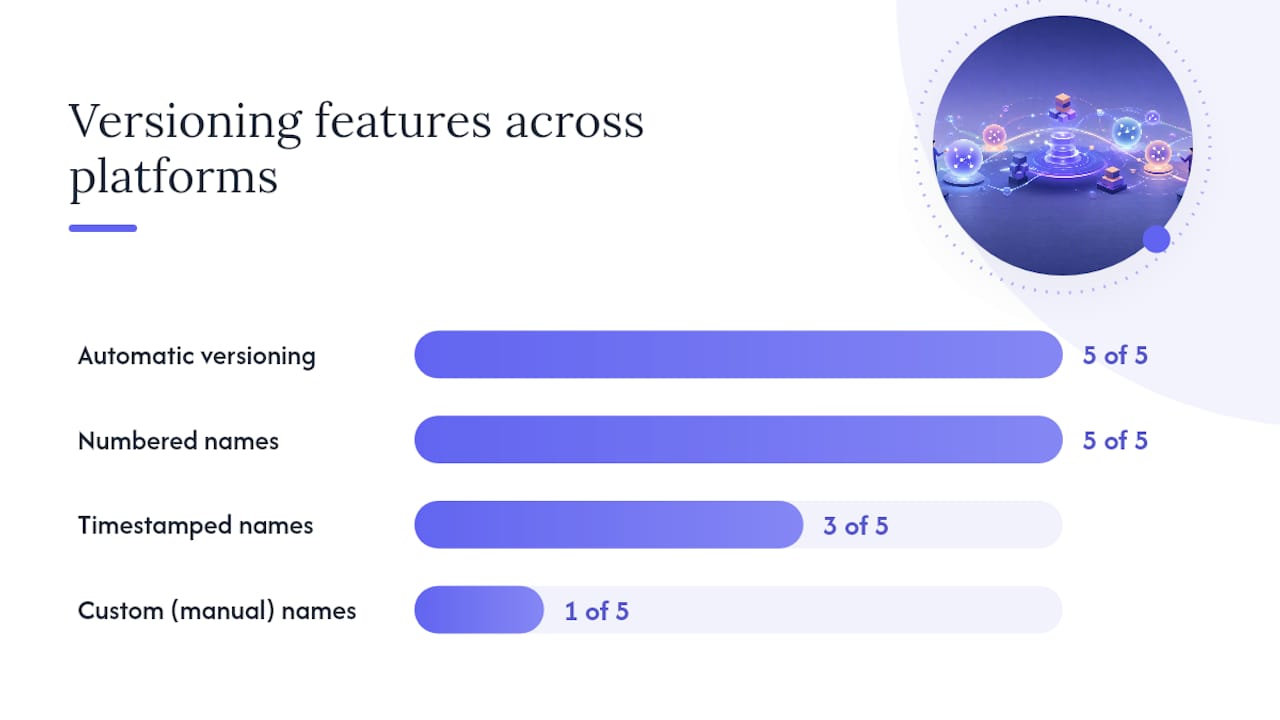
The practical difference comes down to automatic versus manual. SharePoint, OneDrive, and ShareFile all record a new version the moment a file is saved or re-uploaded. No one has to remember to do anything. Google Workspace does this too, but it also lets editors manually name a specific version (“Sent to legal,” “Board draft”) so it stands out from the automatic noise, and Google Drive supports a limited number of named versions per document.
Account type changes what you’ll actually see. A personal Microsoft account behaves differently than a work or school account tied to a SharePoint tenant, and that distinction shows up again when we get to storage limits. For now, the takeaway is simple: if your organization runs on Microsoft 365, your document library administrator controls how deep that history goes, not you individually.
How Do You View Previous Versions of a File?
The UI path is nearly identical across Microsoft’s products, which is one less thing to remember once you’ve done it twice.
In OneDrive or SharePoint:
- Right click the file in the document library.
- Select Version History from the menu.
- A panel opens listing every saved version with a timestamp and the name of who made the change.
- Click any version to open it in a new tab, or click the ellipsis next to it for restore/download options.
Inside an Office web app (Word, Excel, PowerPoint):
- Open the file directly.
- Click the file name at the top of the screen.
- Select Version History from the dropdown.
- Browse versions in the side panel without leaving the document.
In ShareFile:
- Open the folder containing the file.
- Click the file’s details panel.
- Select the Versions tab to see prior uploads and their timestamps.
Every version entry shows a timestamp and the editor’s name at minimum. SharePoint also logs check-in comments when they’ve been added, which turns version history into a rough changelog if your team actually bothers to write them. Word, Excel, and PowerPoint online let you open two versions side by side and compare changes directly, which beats guessing from memory what got cut.
Pro Tip: Open an older version in a new browser tab instead of navigating away from your current one. That way you can eyeball both versions at once before deciding whether a restore is even necessary.
Microsoft’s own documentation confirms this view-and-compare behavior works consistently across the Office web apps, which is worth bookmarking if your team splits time between Word desktop and Word online.
Should You Restore a Version or Just Download It?
This is the decision point people get wrong most often, usually under time pressure. Here’s the rule: restore in place when you want the old version to become the live document again. Download or save-as when you want to keep the current version untouched and just examine or extract something from an older one.
- Restoring replaces the current file with the selected version, but it doesn’t delete anything. The version you just replaced gets saved as a new entry in the history, so nothing is ever truly lost through a restore.
- Downloading pulls a copy to your device without changing what’s live in the shared library. Good for pulling numbers out of last month’s report without disrupting this month’s.
- Saving a version under a new filename keeps two live copies in the library, useful when two people genuinely need to keep working on divergent drafts before merging.
The mechanics matter here: when you restore a prior version, it doesn’t just quietly appear. It becomes the new current version and gets its own entry at the top of the history, which means SharePoint’s versioning system treats a restore exactly like any other edit. You can always undo a bad restore by restoring again.
What happens if the whole file is gone, not just an outdated version? Version history won’t help you there, but the Recycle Bin will. SharePoint and OneDrive both keep a two-stage recycle bin: a first-stage bin scoped to your own deletions, and a site-level second-stage bin an administrator can access. Deleted files typically sit recoverable for a window measured in weeks before they’re purged permanently, so check the Recycle Bin before assuming a file is unrecoverable.
Pro Tip: Train your team to download a copy before restoring anything they’re unsure about. It costs ten seconds and it means you can undo a bad call without digging through the Recycle Bin later.
What Actually Triggers a New Version?
Version creation isn’t random. It’s governed by a handful of settings your library administrator controls, and understanding them explains why some files rack up forty versions in a day while others barely change.
Major versus minor versions. A major version is a numbered, published version (1.0, 2.0) visible to anyone with read access. A minor version (1.1, 1.2) is a draft state, typically visible only to the editor and anyone with edit permissions, until it’s published as a major version. Libraries configured for major-only versioning skip the draft stage entirely: every save becomes a full, visible version.
Check-out changes the math. When check-out is required, a file locks to a single editor until they check it back in, and only the check-in event creates a new version. Without check-out, every save from every collaborator can spin up a new version entry, which gets noisy fast on files with heavy co-authoring. Requiring check-out is one of the simplest ways to cut version clutter on documents that don’t need real-time simultaneous editing.
Permissions decide visibility. Microsoft’s versioning documentation lays out how content approval settings interact with this: a file pending approval shows as a draft to most viewers, while approvers and the author see the working version. Deleting a specific version, as opposed to deleting the whole file, is usually restricted to people with edit or higher permissions, which matters if you’re trying to figure out who’s allowed to clean up a cluttered history.
| Setting | What it controls | Who sees it |
|---|---|---|
| Major versions only | Every save is a numbered, published version | Anyone with view access |
| Major + minor versions | Drafts exist between published versions | Draft visible to editors and approvers only |
| Check-out required | Only the check-in creates a version | Locked to one editor until checked in |
| Content approval | Unapproved versions stay in draft state | Draft hidden from general viewers until approved |
How Do You Turn On and Configure Versioning?
If you’re the administrator, this lives in one predictable place: Library Settings → Versioning settings. From there you’re choosing among a short list of options that shape everything covered above.
- Decide whether the library needs major versions only or major and minor (draft) versions, based on whether your content goes through a review cycle before publishing.
- Set a limit on the number of major versions retained (and minor versions, if you’re using them), so history doesn’t grow indefinitely.
- Choose who can see draft versions: only the author and editors, or anyone with edit permissions to the item.
- Decide whether to require check-out before editing, which reduces version churn on files that don’t need true real-time co-editing.
Microsoft’s guidance on enabling and configuring versioning walks through each toggle in the settings panel, and it’s worth reading in full if you’re setting policy for more than one library, since the defaults that work for a marketing asset library rarely fit a legal contracts library.
For organizations managing versioning settings across dozens or hundreds of libraries, doing this by hand in the browser doesn’t scale. PowerShell (via the PnP PowerShell module) and the Microsoft Graph API both let admins script bulk changes to versioning settings, which is the practical route once you’re past a handful of sites. Whichever method you use, keep a record of what you changed and when. An undocumented versioning policy change is almost as confusing six months later as no policy at all.
Pro Tip: Audit your versioning settings once a quarter, not just when something breaks. Libraries created by different site owners often end up with wildly inconsistent settings, and nobody notices until a document goes missing its history.
How Many Versions Get Stored, and What Does That Cost?
Storage limits differ sharply by account type, and this is where a lot of confusion starts. Personal Microsoft accounts retain a limited number of versions of a file, full stop, with no way to raise that ceiling. Work or school accounts operate under whatever limit the library administrator configured, which could be far higher, or lower, depending on the library’s Versioning settings.
New libraries in Microsoft 365 have versioning turned on by default, so most teams are already accumulating history without having done anything deliberate. That’s good for safety, less good for storage planning if nobody ever revisits the retention limit.
- High retention limits protect against mistakes but consume more storage over time, especially on large files like video-heavy presentations or design assets.
- Google Workspace’s cap of 40 named versions per document applies specifically to manually named versions; automatic revision history keeps working in the background separately.
- Very old versions rarely need to stay in active storage. If a document has been stable for a year, archiving or exporting its history to a separate record satisfies audit needs without bloating the live library.
The practical move: set retention limits based on the sensitivity of the content, not a blanket policy across every library. A signed contract library might warrant near-unlimited retention. A weekly status report template doesn’t need forty versions of the same boilerplate sitting in storage.
What Actually Prevents Version Chaos on a Team?
Settings alone don’t fix version confusion. Most of it comes down to habits, and the research on this is pretty consistent: teams that treat documents like they’d treat code, with a single source of truth and clear ownership, run into far fewer “which one is current” conversations.
A few practices carry the most weight:
- One publication point. Every stakeholder pulls from the same shared location instead of a copy that got emailed around three weeks ago.
- Structured naming and numbering. Documented version-control practice recommends major/minor numbering over filenames like “FINAL_v2,” which stops meaning anything after the third revision.
- Named owners. Every critical document needs someone accountable for approving changes, not a group inbox nobody checks.
- Status labels. Marking documents Draft, Approved, or Superseded, a pattern common across document control best practices, makes the current state visible without opening the file.
- Check-in and role-based access. EDMS best practices point to check-in/check-out discipline and restricted edit access as the features that actually prevent conflicting edits, not just log them after the fact.
Here’s where it gets interesting for teams running sales content specifically. Traditional versioning depends entirely on human discipline: someone has to remember to rename the file, tag the right status, and tell the team a new version exists. That discipline breaks down constantly once content spreads across email threads, chat messages, and personal drives. Semantic and AI-assisted systems approach the problem differently. Rather than relying on a person to notice a deck is stale, these systems can flag contradictions across documents automatically, surfacing when a pricing slide in one file conflicts with a number in another.
That doesn’t replace governance. A system that flags a stale deck still needs a named owner to fix it and push the corrected version live. What it does is catch the drift long before a rep notices it in front of a prospect, which is usually too late.
If you’re setting this up for the first time, start small: pick one high-traffic library, apply structured naming, assign an owner, require check-out, and set a retention limit. Expand from there once the habit sticks.
Pro Tip: Add a visible version stamp to the footer of any document that gets shared outside your team, especially sales collateral. A date and version number in the footer catches “wait, is this the old pricing?” before it becomes an email chain.
One Admin’s Version History Incident, and the Fix
A SharePoint admin at a mid-size company once told a familiar story: a sales rep restored what they thought was a corrected pricing sheet, except the “correction” was actually an older draft that had been sitting in minor-version limbo for weeks. It went out to a prospect that afternoon. Nobody caught it until the prospect asked why the numbers didn’t match what they’d seen on the call.
The fix wasn’t complicated. The admin turned on content approval for that specific library, so no version could go live without a second set of eyes, and required check-out on anything tagged as customer-facing collateral. Version count on that library dropped by more than half within a month, simply because people stopped saving over each other by accident.
The copyable move here: if a library holds anything a prospect or customer might see, require check-out and turn on approval. It adds a few seconds of friction internally. It removes the possibility of an unapproved draft reaching a buyer.
That kind of gap, a document that’s technically current in the file system but stale in the context of a live deal, is exactly the space between conversations that breaks deals quietly. It’s part of why we built Trailercast’s Sales Content Library to rank the correct asset per deal automatically rather than relying on a rep to remember which version is safe to send, and why every decision room keeps one single, controlled version of the deal’s materials instead of scattering copies across email and chat. If your sales team is still resending PDFs and hoping the right one lands, see how Trailercast keeps every deal’s content current in one workspace instead of five disconnected tools.
Sources
- View previous versions of Office files
- How versioning works in lists and libraries
- Enable and configure versioning for a list or library
- Save or name a version of a file in Google Drive
- Document Version Control: Benefits, Best Practices & Complete Guide - Pericent