Stop Orphaned Recordings: Calendar Integrated Recorder Checklist for IT Admins

A calendar integrated recorder automatically links calendar events to recordings and transcripts so meetings are captured, labeled, and searchable. It removes the manual work of hitting record, naming files, and matching recordings to the right meeting. If you run back-to-back calls all day, this is the tool that keeps a record of who said what, on which deal, without you lifting a finger.
TL;DR:
- Reliable calendar integration requires support for rescheduling and cancellation updates to prevent orphaned or missed recordings.
- Using supported properties like the onlineMeeting and joinUrl ensures meeting links remain functional despite platform updates.
- Vocal speaker mapping and diarization are critical for producing useful, searchable transcripts that assign speech to actual attendees.
- Admin controls, storage policies, and compliance settings must be verified to secure recordings and adhere to organizational standards before full deployment.
- For sales teams, tools like TrailerCast combine calendar-triggered recordings with deal context management, enhancing follow-up and stakeholder communication.
Table of Contents
- What a calendar integrated recorder is and expected behaviors
- How integrations work: add-ins, OAuth, and reliable join URLs
- The features, policies, and measurements that actually matter
- Platform interoperability across Google, Microsoft, and conferencing tools
- Choosing between meeting transcription and physical capture
- Security, privacy, and compliance before you flip the switch
- Where TrailerCast fits into calendar-linked meeting capture
- Rolling this out without breaking anyone’s trust
- Try TrailerCast for calendar-linked meeting intelligence
- Sources
- FAQ
What a calendar integrated recorder is and expected behaviors
There are two very different things people mean when they say “calendar integrated recorder,” and mixing them up is where most buyers get burned.
The first pattern is metadata attachment. The recorder captures a meeting, then looks up your calendar to pull in the title, attendees, and time, and stitches that context onto the file after the fact. It’s useful, but it depends on you (or another tool) doing the actual recording.
The second pattern, and the one most professionals actually want, is active auto-recording through bot dispatch. The system reads your calendar ahead of time, identifies which events have a join link, and sends a recording bot into the meeting automatically at the scheduled time. No one has to remember to start anything. According to Recall.ai’s calendar integration documentation, this connects to Google Calendar or Microsoft Outlook, reads event details and meeting links, and can dispatch a recorder that later links the recording and transcript back to the original event, including the title, organizer, timing, and participant emails.

That connection happens through OAuth. When you authorize a calendar integration, you’re granting read access to your event list, which is how the tool knows when a meeting starts, who’s invited, and where the join link lives. Without that permission, there’s no calendar to trigger off of, and you’re back to manual recording. It’s worth checking exactly what scope of access an app requests during setup: read-only calendar access is very different from write access that can create or modify events on your behalf.
Reschedules and cancellations are where a lot of tools quietly fail. If a meeting moves an hour later and the recorder doesn’t catch the update, you either get a bot joining an empty room or, worse, no recording at all for the meeting that actually happened. A properly built integration watches for event changes and updates its recording schedule in real time, canceling a dispatch when a meeting is called off and rescheduling it when the time shifts.
The last piece is speaker mapping. Calendar events already list attendee emails, and a well-built recorder uses that list to match diarized speaker segments to actual names instead of leaving you with “Speaker 1” and “Speaker 2” in a transcript. That single detail is often the difference between a transcript you actually use and one you skim once and forget.
How integrations work: add-ins, OAuth, and reliable join URLs
Getting a calendar integrated recorder to work reliably across your team isn’t just a matter of clicking “connect.” The setup involves a few technical layers worth understanding, especially if you’re the one who has to answer for it when something breaks.
OAuth versus add-in flows. Most calendar integrations use OAuth to request read access to your events. Some conferencing tools instead rely on an add-in installed into the calendar app itself, which then inserts a join link or meeting metadata directly into the event. Both approaches work, but they fail differently. An OAuth token can expire or get revoked if a password changes or an admin tightens security policy. An add-in can break if the calendar platform changes its extension API or if a user never installs it in the first place.
Use the properties built for this. On the Microsoft side, integrations should read the onlineMeeting and joinUrl properties through Microsoft Graph rather than parsing older, deprecated fields. Relying on the supported properties means your recorder keeps working even as Microsoft updates how meeting links are generated or displayed inside an event.
Cross-platform flows get specific. If your team runs Teams meetings but schedules from Google Calendar, you’ll likely need the Teams add-on installed and authorized inside Google Calendar. If you run Google Meet but live in Outlook, Google’s Meet add-in for Outlook inserts the Meet joining details directly into the Outlook event so participants can join from there. Each direction requires its own authorization step, and skipping it is the single most common reason a “connected” calendar doesn’t actually produce a join link.
What IT admins should watch. Token refresh is not automatic in every implementation, and a lapsed authorization can quietly stop a recorder from dispatching without any obvious error message. Domain-wide installs (rather than per-user authorization) reduce that risk for larger teams, since an admin can push the integration once instead of relying on each person to connect their own account. Build a habit of checking authorization status periodically, particularly after a password reset, an SSO change, or a calendar platform update.

The features, policies, and measurements that actually matter
Vendor demos tend to show you the happy path: a clean meeting, a tidy transcript, a satisfied nod. The real evaluation happens when you ask about the messy cases.
- Calendar and conferencing coverage. Confirm support for Google Calendar and Outlook/Exchange, plus join-link handling for Zoom, Meet, and Teams, since a gap in any one of these means manual work for part of your team.
- Capture mode. Understand whether the tool joins as a visible bot, records silently from the browser, or triggers a physical device, because each has different visibility and consent implications.
- Transcript quality and diarization. Ask how attendee emails get mapped to speaker labels, since that mapping is what turns a wall of text into something searchable by name.
- Event-linking behavior. Test what happens when a meeting is rescheduled or canceled: does the recording follow the event, or does it orphan itself under the old time slot?
- Pre-roll and post-roll settings. Some tools let you configure a buffer before and after the scheduled time to catch late starts or overruns.
- Export and retention. Check whether transcripts and recordings can be exported, how long they’re retained by default, and who controls that setting.
- Admin controls and storage location. Ask where recordings physically live and who in your organization can access, delete, or restrict them.
- Pricing structure. Some vendors charge per seat, others per recording minute, and the difference matters a lot once your team scales past a handful of users.
This list mirrors what Recall.ai’s own integration documentation lays out as the core dimensions to compare: calendar and platform coverage, bot versus bot-free capture, automatic handling of event edits and cancellations, transcript and diarization quality, event linking, attendee notification, and administrator controls over retention and export.
One distinction deserves its own line item because it changes your entire deployment plan: does the tool auto-start recording based on the calendar event, or does it only attach metadata to a recording you started yourself? Recall’s documentation flags this as one of the first things a buyer should confirm, and it’s easy to assume the more automated behavior when a vendor’s marketing copy is vague about it.
Pro Tip: During any trial, deliberately reschedule a meeting twice and cancel a third one, then check whether the recorder handled all three correctly before you trust it with a real deal.
Platform interoperability across Google, Microsoft, and conferencing tools
Reliability across calendar and conferencing platforms is where most of the friction actually lives, and it’s rarely about the recording itself.
Join URLs are the connective tissue. When a meeting is scheduled, the conferencing platform needs to surface a link inside the calendar event so both attendees and any automated recorder can find it. On Microsoft 365, that link lives in the onlineMeeting property exposed through Graph, which is why integrations built against that property tend to survive platform updates better than ones scraping event descriptions for a URL pattern.
Storage and governance differ by platform too. Inside Microsoft 365, Teams intelligent recap requires meeting transcription and recording to be turned on, and Microsoft states that both the recording and the transcript follow your organization’s existing security, compliance, and privacy policies. Storage typically involves the meeting organizer’s Exchange Online account and their OneDrive once both recording and transcript are enabled, meaning the person who set up the meeting can end up being the de facto owner of where that data lives.
Cross-platform sync isn’t always permanent, either. Microsoft has confirmed that calendar syncing between Google Workspace and Microsoft Teams will no longer be supported starting in October 2026, which means any team relying on that sync path needs to plan an alternative, typically through the relevant calendar add-on, well before that date arrives.
A few practical steps keep things running smoothly regardless of which platforms you mix. Install and authorize the correct add-in for each direction you need, whether that’s the Teams add-on inside Google Calendar or the Meet add-in inside Outlook. Check authorization status after any single sign-on change. And treat any deprecation notice from Google or Microsoft as a deadline, not a suggestion, since these sync paths tend to break quietly rather than with a loud warning.
Choosing between meeting transcription and physical capture
Not every “calendar-triggered recording” need looks the same, and picking the wrong capture mode wastes both setup time and trust in the tool.
Cloud bot capture and automatic transcripts fit almost every remote, sales-facing workflow: discovery calls, demos, internal recap meetings, anything happening over Zoom, Meet, or Teams where a bot can join the link and record directly from the platform. This is the mode most B2B sales teams need, since the entire point is a searchable transcript tied to a deal, not a studio-quality audio file.
Calendar-triggered physical or multitrack recording serves a narrower but real set of use cases: research interviews, studio sessions, or any setting where you need multiple isolated audio tracks from physical microphones rather than a single conferencing feed. An open-source example, Record On Calendar, shows what this looks like in practice: the project supports configurable pre-roll and post-roll buffers, regex-based event filtering so only matching calendar entries trigger a recording, adjustable polling frequency, and selection of specific device tracks. These are illustrative settings from one implementation, not industry standards, but they show the kind of control physical setups typically need that cloud bot tools don’t.
Two operational details apply to either path. First, attendee notification: most conferencing platforms announce when a bot joins or when recording starts, and skipping that step risks both trust and, depending on your jurisdiction, consent requirements. Second, pre-roll and post-roll timing matters more than people expect, since a meeting that starts two minutes late shouldn’t cost you the opening context.
To validate a provider for your specific case, run the same test in each direction: schedule a normal meeting, a rescheduled one, and a same-day cancellation, and confirm the capture mode you actually need (bot, browser, or device) behaves correctly in all three.
Security, privacy, and compliance before you flip the switch
Automated recording touches sensitive ground the moment it goes live: client conversations, internal strategy, sometimes legal or financial detail. A few questions need clear answers before you roll this out past a pilot.
Where does the data actually live? For Microsoft 365 environments, Microsoft documents that Teams recordings and transcripts follow the organization’s own security, compliance, and privacy policies, with storage tied to the meeting organizer’s Exchange Online account and OneDrive once recording and transcription are both enabled. That detail matters because it puts a specific person’s storage quota and access permissions in the middle of your compliance picture, whether or not anyone planned it that way.
Who controls the policy? Recording and transcription in Microsoft 365 are governed by tenant-level policies that admins set, not something each employee toggles individually. Before enabling any third-party recorder, confirm it respects those same admin controls rather than working around them.
What about export and legal hold? If your organization ever needs to preserve a recording for litigation or produce one for an audit, check whether the tool supports export in a usable format and whether recordings can be placed under legal hold without being altered or deleted on the vendor’s normal retention schedule.
Data residency, if it applies to you. Some industries and jurisdictions require data to stay within specific geographic boundaries. If that applies to your business, this needs to be settled before rollout, not discovered afterward.
A short checklist before you turn this on organization-wide: confirm storage location and who has access to it, confirm the tenant-level recording and transcription policy is set the way you intend, confirm export and legal hold both work, and confirm attendees are notified when recording starts. None of these are optional if you’re recording client-facing calls at any scale.
Where TrailerCast fits into calendar-linked meeting capture
TrailerCast’s conversation intelligence layer connects directly to your calendar through Google and Microsoft, auto-scheduling an AI notetaker to join Zoom, Meet, and Teams calls without you manually inviting a bot to each meeting. Every call is transcribed speaker by speaker, and the system automatically distinguishes a qualifying call from a demo so each gets routed into the right part of your pipeline.
Where TrailerCast diverges from a standard recorder is what happens after the transcript exists. Rather than treating each call as an isolated file, TrailerCast maintains an evolving Deal Brief that spans every call tied to an opportunity, so the context from three weeks ago is still there when a new stakeholder joins the deal. From a strong demo recording, the AI selects the 8 to 15 minutes that mattered and builds a branded trailer your champion can actually forward internally, including versions tailored to a specific stakeholder such as a CFO or a CISO.
The recording layer also extends past the call itself. A browser-based recording option works without any local install, and meeting recording ties directly into calendar events the same way a standalone recorder would, but feeds into the same AI that tracks the deal through close. When a contract signs, an AI Handoff Brief fires automatically to Customer Success with the stakeholder map, promised features, and risk flags already assembled, so the team receiving the account isn’t starting from a blank page.
This setup tends to fit best for B2B SaaS sales teams working multi-stakeholder deals, typically companies between 11 and 200 employees where a CRO, VP of Sales, or RevOps leader owns the decision to consolidate tools. If your primary need is a single recorder bolted onto one calendar, a narrower tool may suffice. If the actual problem is that context disappears between calls, that’s the gap TrailerCast is built around.
Rolling this out without breaking anyone’s trust
If there’s one thing I’d tell any team about to turn on a calendar-integrated recorder, it’s this: pilot small, and pilot on purpose. Pick a single calendar domain and a handful of power users who already live in back-to-back meetings, not a random sample across the company.
During that pilot, deliberately test the edge cases before you trust the happy path. Reschedule a meeting and confirm the recorder follows it. Cancel one and confirm no orphaned recording shows up. Let an OAuth token sit for a couple of weeks and see whether the integration quietly stops working or handles the refresh on its own.
Then look past the technical setup to the actual output. Read a transcript the way a busy manager would, skimming for whether the speaker labels make sense and whether you can find what you need in under a minute. Ask your pilot users whether the recording actually changed how they followed up on a deal, or whether it just sat there as one more file nobody opened.
Only once those answers are solid should this move beyond a pilot. A tool that fails quietly on reschedules or produces unusable transcripts causes more damage at full scale than it ever saves in convenience.
— Daniel
Try TrailerCast for calendar-linked meeting intelligence
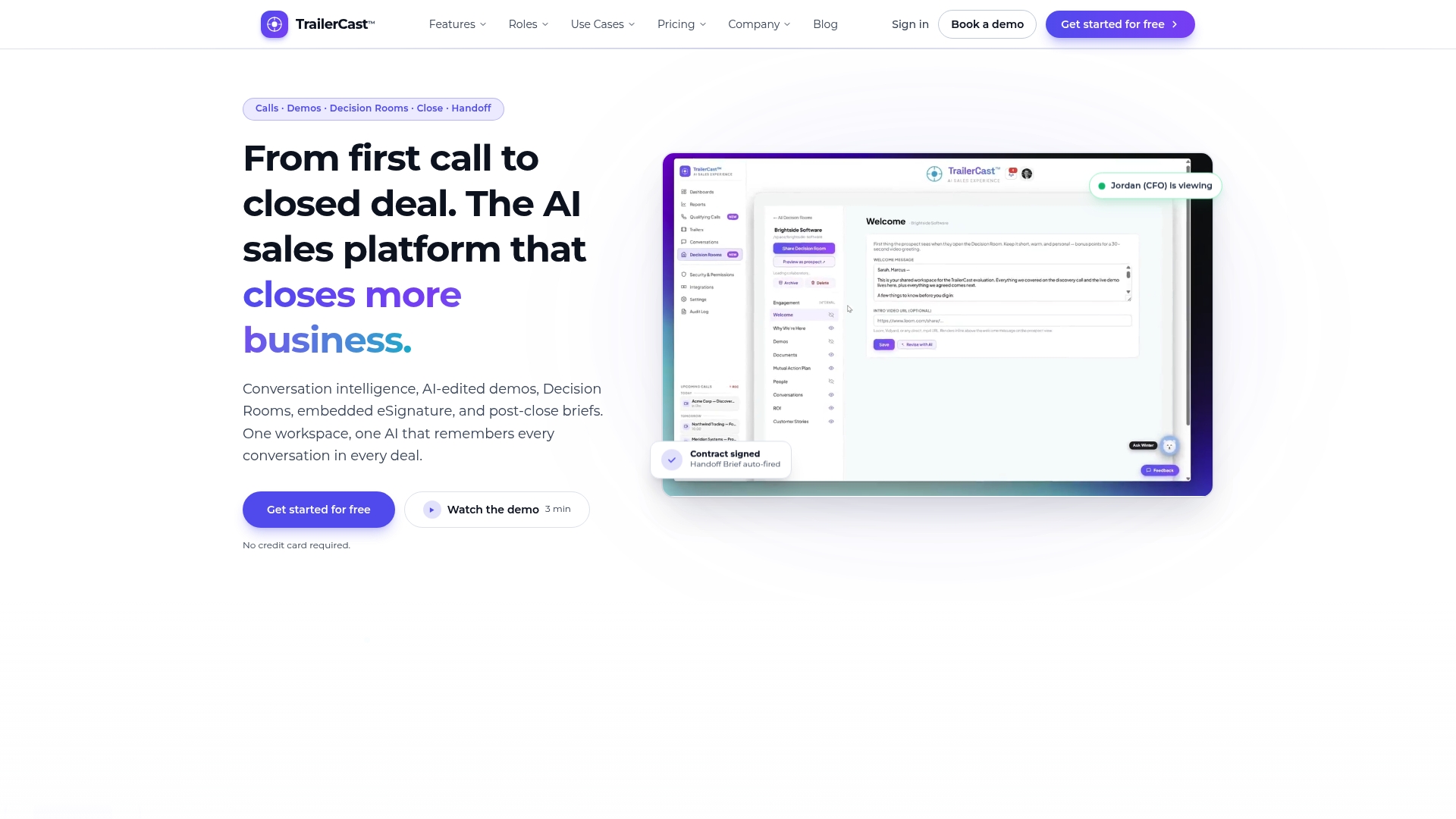
If what you’re after is a recorder that doesn’t just capture the call but remembers the whole deal around it, TrailerCast is built for exactly that. Instead of a transcript sitting in a folder, every call feeds into a Deal Brief that follows the opportunity from first conversation to signed contract.
- Connect your Google or Microsoft calendar and let the AI notetaker auto-join your Zoom, Meet, and Teams calls.
- Get speaker-by-speaker transcripts, qualification verdicts, and action items without touching a manual recorder.
- Turn a strong demo into a trailer your champion can forward to stakeholders who weren’t on the call.
TrailerCast runs on one plan with every feature included, starting from $59 per seat per month. Start a free trial, no credit card required, and see whether a single AI across your whole deal cycle changes how your team follows up.
Sources
For implementation and admin decisions, a few primary sources are worth bookmarking: Recall.ai’s calendar integration docs cover OAuth-based calendar access and evaluation criteria in detail. Microsoft’s guidance on Teams intelligent recap and Google Calendar sync deprecation explain governance and an upcoming platform change respectively. Google’s Meet add-in guide covers cross-platform join link setup.
- Calendar integration docs — Recall.ai
- Record On Calendar — GitHub
- Add Meet video meetings to Outlook — Google Meet Help
FAQ
What is an integrated calendar?
An integrated calendar connects your scheduling app to other tools, such as a conferencing platform or a recorder, so events automatically carry meeting links, participant lists, and related metadata. This lets other software act on that information, like joining a call or attaching a transcript to the right meeting, without manual entry.
What is the best calendar integration app?
There’s no single best answer here since it depends on which calendars and conferencing platforms you use daily. The right approach is to confirm the tool supports your specific combination, such as Google Calendar with Zoom or Outlook with Teams, and that it handles reschedules and cancellations correctly, as described in Recall.ai’s integration documentation.
What is the best software for recording meetings?
The right tool depends on whether you need a straightforward recorder or a system that also builds context around each deal or project over time. TrailerCast, for example, pairs calendar-triggered recording with an evolving brief that follows an opportunity across every call, which suits sales teams managing multi-stakeholder deals rather than one-off meeting capture.
How do I import a calendar into Notes?
This depends on the note-taking app, since calendar import isn’t a universal feature across all of them. Most apps that support it require you to authorize calendar access through OAuth or install a dedicated add-in, similar to how Google’s Meet add-in for Outlook inserts meeting details directly into calendar events.